Strac Endpoint Agent
A small, read-only agent checks the security settings your auditor asks about on every work computer. Employees see what to fix. You see every computer as live audit evidence.
- Works on
- macOS, Windows and Linux
- Checks per computer
- 17 on macOS, 19 on Windows, 18 on Linux
- Counts toward
- SOC 2, ISO 27001, PCI DSS, NIST CSF, HIPAA and CCPA
Last checked November 24, 2026Read as Markdown
How do I check my computers from my AI agent?
Ask your agent about your computers in plain words. It reads the same list you see on the Computers page, with every check for every computer.
| MCP tool | Access | What you use it for |
|---|---|---|
| list_devices | Read | Every computer with its owner, status, last check-in and each check. People with no computer reporting are listed too. |
| list_tests | Read | The device tests, such as Device Disk Encryption, and whether each one passes. |
| get_test_result | Read | One test in detail, with the computers that fail it. |
| rerun_test | Write | Run a device test again after someone fixes a setting. |
| get_control | Read | One control, such as SOC 2 CC6.1, with the evidence behind it. |
Try these prompts
- Which computers are failing disk encryption?
- Who has no computer reporting to Strac yet?
- List every Windows computer with a failing check, grouped by owner.
- Which computers have not checked in for a week?
- Sam turned on the firewall. Re-run the device firewall test.
What your agent gets back. One row per computer: the owner, the system, the agent version, the last check-in, and pass, fail or not verified for each check. People without a reporting computer come back as their own list.
Connect your agent first.
How do I roll it out from the dashboard?
Invite your team once. Every employee gets a personal install link, and every computer lands on the right person.
Admin
Step 1: Invite employees
Open Personnel > Computers and click Invite employees. Invite everyone without the agent at once, or type addresses.
Employee
Step 2: They open the email
Each person gets one email with a personal install link. It says what the agent reads and never reads. No account is needed.
Employee
Step 3: They install it
The install page shows the steps for their own system. On a Mac it is a standard installer. On Windows and Linux it is one command.
Employee
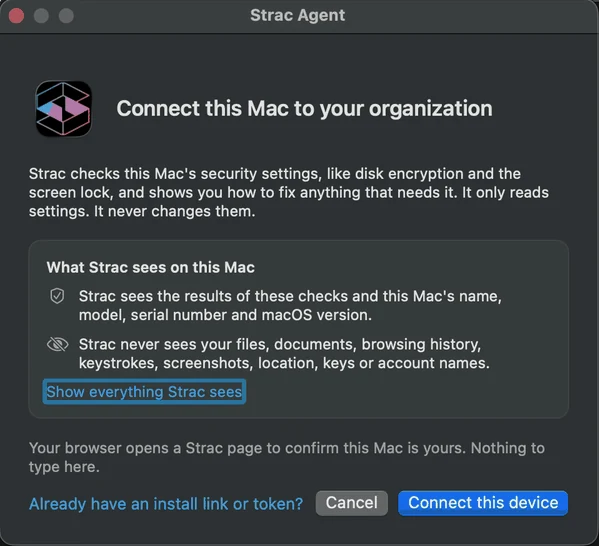
Step 4: They connect the computer
The browser shows the computer to confirm. One click ties the computer to the employee, and your admins are told.
Agent
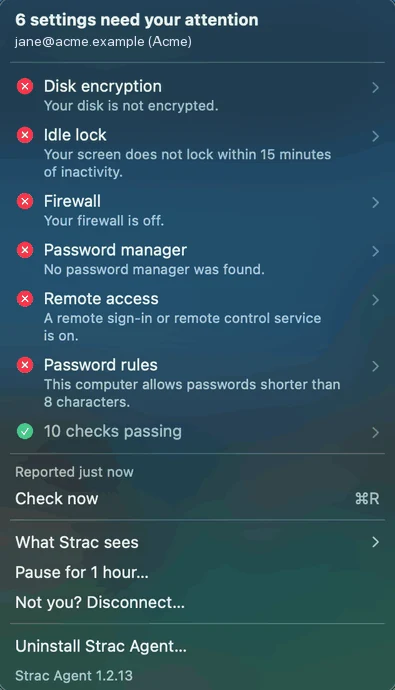
Step 5: The agent checks at once
The first check runs right away. Failing checks come first, each with steps to fix it. A changed setting reaches Strac Comply within minutes.
Admin
Step 6: You get the proof
Every computer appears on the Computers page next to its owner. Each check becomes test evidence, mapped to your controls.
Prefer no employee clicks?
What does the agent check?
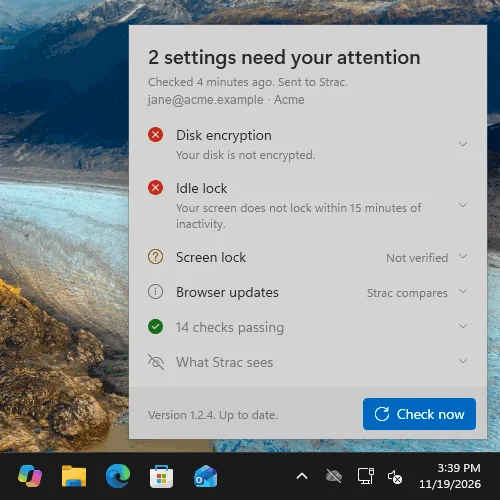
The agent only reads settings. It never changes them. A setting it cannot read shows as Not verified, and that never counts as a pass.
| Check | Passes when | macOS | Windows | Linux | Counts toward |
|---|---|---|---|---|---|
| Firewall | A host firewall is on (macOS firewall, Windows Defender Firewall, ufw or firewalld). | ✓ | ✓ | ✓ | SOC 2 CC6.6; ISO 27001 A.8.1, A.8.20; PCI DSS 1.5.1; NIST CSF PR.IR-01; CCPA §7123(c)(11) |
| Encryption | The system disk is encrypted (FileVault, BitLocker or LUKS). | ✓ | ✓ | ✓ | SOC 2 CC6.1, CC6.7; ISO 27001 A.8.1, A.8.24; NIST CSF PR.DS-01; HIPAA §164.312(a)(2)(iv); CCPA §1798.150(a), §7123(c)(2) |
| Screen lock | The computer asks for a password after sleep or the screen saver. | ✓ | ✓ | ✓ | SOC 2 CC6.1; ISO 27001 A.7.7, A.8.1, A.8.5; NIST CSF PR.AA-03; CCPA §7123(c)(3) |
| Anti-malware | Anti-malware is running (XProtect, Microsoft Defender, ClamAV or an EDR such as CrowdStrike). | ✓ | ✓ | ✓ | SOC 2 CC6.8; ISO 27001 A.8.7; PCI DSS 5.2.1; NIST CSF PR.PS-05; HIPAA §164.308(a)(5)(ii)(B); CCPA §7123(c)(9) |
| Supported OS | The operating system version still gets security updates. | ✓ | ✓ | ✓ | SOC 2 CC7.1; ISO 27001 A.8.8; NIST CSF PR.PS-02; CCPA §7123(c)(5) |
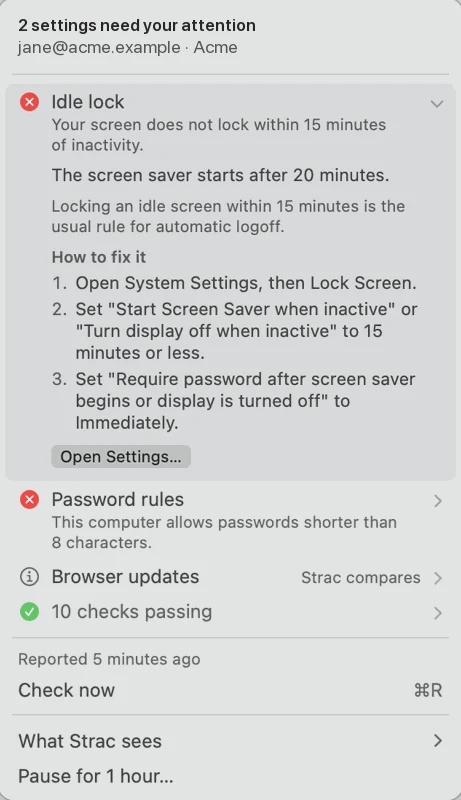
| Idle lock | The screen locks within 15 minutes of inactivity. | ✓ | ✓ | ✓ | Recommended practice |
| OS updates | Automatic operating system updates are on and not paused. | ✓ | ✓ | ✓ | Recommended practice |
| Password manager | A password manager app or browser extension is installed. | ✓ | ✓ | ✓ | Recommended practice |
| Automatic sign-in | The computer does not sign anyone in by itself at startup. | ✓ | ✓ | ✓ | Recommended practice |
| Guest account | No guest account or guest session can sign in. | ✓ | ✓ | ✓ | Recommended practice |
| Remote access | No remote sign-in or control service is on (SSH, Remote Desktop, Screen Sharing or VNC). | ✓ | ✓ | ✓ | Recommended practice |
| System protection | System Integrity Protection (Mac) or Secure Boot (Windows, Linux) is on. | ✓ | ✓ | ✓ | Recommended practice |
| Password rules | The minimum password length is 8 characters or more. | ✓ | ✓ | ✓ | Recommended practice |
| SSH keys | No SSH private key lacks a passphrase. Only a count is sent, never a key. | ✓ | ✓ | ✓ | Recommended practice |
| Browser updates | Chrome, Edge and Firefox are on a current release. | ✓ | ✓ | ✓ | Recommended practice |
| Sharing | No file or internet sharing is on. | ✓ | ✓ | ✓ | Recommended practice |
| Anti-malware updates | Anti-malware definitions are current: 45 days on macOS, 7 on Windows and Linux. | ✓ | ✓ | ✓ | Recommended practice |
| AutoPlay | Nothing starts by itself from a connected drive. | No | ✓ | ✓ | Recommended practice |
| Administrator approval | User Account Control is on and asks administrators to approve changes. | No | ✓ | No | Recommended practice |
| Checks per system | 17 | 19 | 18 |
Supported OS follows each vendor. On a Mac, one of the 3 newest macOS releases passes. Windows 10 with Extended Security Updates and Ubuntu Pro also pass.
Recommended practice checks are tracked as tests. They are tied to no control, so your auditor sees them as good practice, not as evidence.
Also recorded, never graded: administrator accounts, MDM enrollment, Find My on a Mac, TPM on Windows and Linux, and installed apps and browser extensions. A company can turn off the app list.
How do I install it on each system?
Every employee follows the steps on their own install page. Here is what they see on each system.
macOS
- Works on macOS 13 or later, on Apple silicon and Intel Macs.
- Download the installer, signed by Strac and checked by Apple, then open it.
- Strac Agent explains what it reads, then opens the browser to confirm the Mac. There is no code to type.
- A shield appears in the menu bar. Check now re-checks in seconds.
- Rolling out to many Macs? Deploy the package with Jamf, Kandji or any MDM.
Windows
- Works on Windows 10 and 11 on x64 PCs, Windows 11 on ARM, and Windows Server 2022 and 2025.
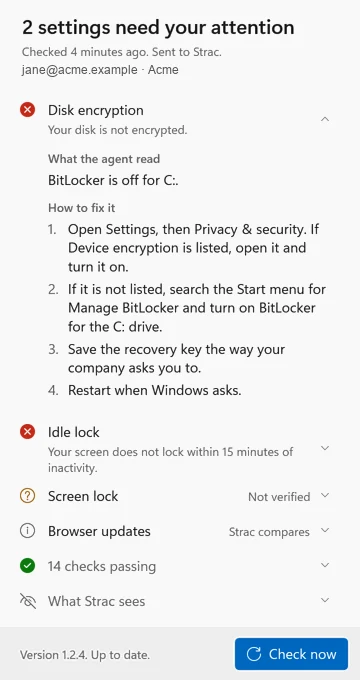
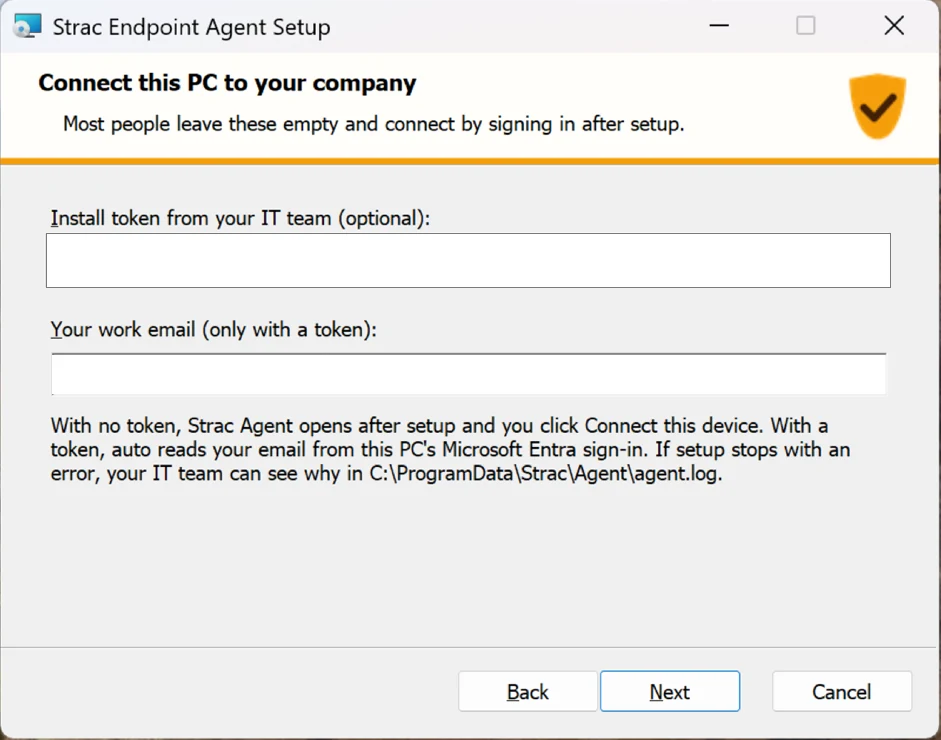
- Run one PowerShell command as administrator from the install page. It installs the agent and connects the PC to the employee.
- Prefer an installer? Download the MSI and leave its fields empty. After setup, click Connect this device.
- The Strac shield sits in the notification area. Each failing check opens to the steps that fix it.
- Rolling out to many PCs? Deploy it with Microsoft Intune or your own deployment tool.
Linux
- Works on Ubuntu 22.04 and 24.04, Debian 12, Fedora 41 and later, and RHEL, Rocky Linux and AlmaLinux 9.
- Run one command with sudo from the install page. It adds the signed Strac package repository and installs the agent.
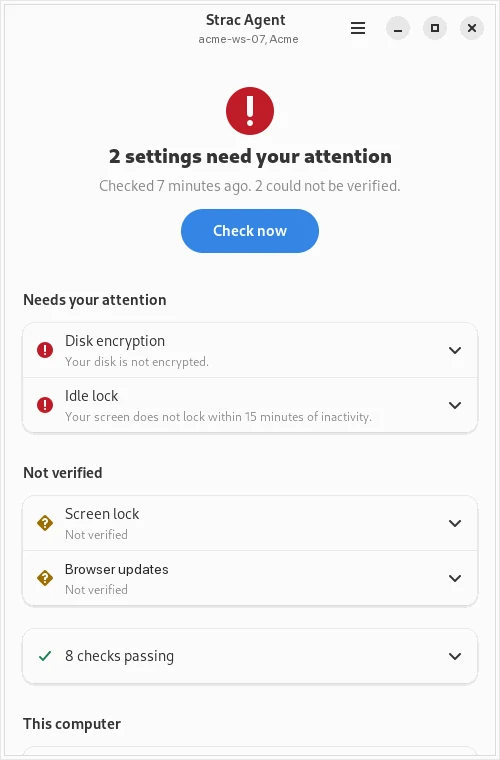
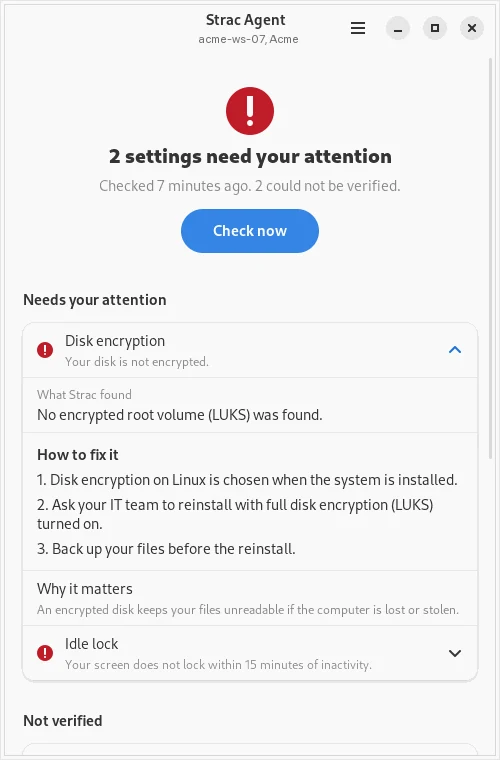
- On a desktop, the Strac Agent app shows each check. In a terminal,
strac-agent statusshows the same checks. - A desktop notification appears when a check starts to fail.
- Rolling out to many computers? Run the same command from your own fleet tools.
What does the agent never send?
The agent sends security settings and the facts that identify the computer: its name, model, serial number and system version. It also sends the owner's work email and, unless your company turns it off, the names of installed apps and browser extensions. It never sends:
- File contents, file names or paths
- Browsing history
- Message and email content
- Keystrokes
- Screenshots
- Location
- Passwords and key material
- Local account names
Employees can open What Strac sees in the agent at any time. An agent that is paused, disconnected or removed says so in Strac Comply.
Which controls does it cover?
Each core check is a test, and each test counts toward the controls below. A fleet-wide test, Device coverage, also checks that every active employee has a healthy, monitored computer.
| Framework | Controls |
|---|---|
| SOC 2 |
|
| ISO 27001:2022 |
|
| PCI DSS v4.0.1 |
|
| NIST CSF 2.0 |
|
| HIPAA Security Rule |
|
| CCPA |
|
Codes use each framework's own numbering: SOC 2 Trust Services Criteria, ISO/IEC 27001:2022 Annex A, PCI DSS v4.0.1 and NIST CSF 2.0. HIPAA codes cite the Security Rule. CCPA codes cite the CCPA statute and its regulations.
Frequently asked questions
What if the agent cannot read a setting?
The check shows Not verified. It never counts as a pass, so your evidence stays honest.
How fast does a fixed setting show up?
A changed setting reaches Strac Comply within minutes. The employee can also click Check now to re-check in seconds.
Can I roll it out without asking employees to click anything?
Yes. Deploy it with Jamf, Kandji, Microsoft Intune or your own tool. Computers connect on their own.
Does the agent change settings on the computer?
No. It only reads settings. Each failing check shows the employee the steps to fix it.
What happens if someone removes or pauses the agent?
Strac Comply shows it on the computer and on the Computers page. A computer that stops reporting no longer counts as monitored.
Can my AI agent tell me which computers fail a check?
Yes. Ask "Which computers are failing disk encryption?" Your agent calls list_devices and answers from your live data.
Next steps
- Connect your AI agentAdd the Strac Comply MCP server and see every tool.
- All guidesSet up the rest of Strac Comply, one feature at a time.
- SOC 2 with Strac ComplyHow Strac Comply gets you ready for a SOC 2 audit.
New to Strac Comply? Start free trial.