Audits and the auditor portal
Run your audit in one place. Create the audit, invite your auditor and answer their evidence requests. Your auditor works in their own portal and sees only the audits you invite them to.
- Frameworks
- 7, each with its own audit types
- Your auditor
- Their own account, only the audits you invite them to
- AI agents
- Yours and your auditor's
Last checked November 25, 2026Read as Markdown
How do I use my AI agent with an audit?
Your agent can read each audit, see what the auditor is waiting on and draft your replies. You create the audit and invite the auditor in the dashboard.
| MCP tool | Access | What you use it for |
|---|---|---|
| list_audits | Read | Every audit with its framework, status and the requests still open. |
| get_audit | Read | One audit: how many controls are sampled, its requests by status and a summary of findings. |
| get_audit_verdicts | Read | The auditor's verdict and comment on each control. |
| list_audit_requests | Read | The evidence requests the auditor raised, by status. |
| get_audit_request | Read | One request, with the evidence already in the audit that you can attach. |
| begin_audit_response_upload | Write | Upload a new file for a reply. |
| prepare_audit_request_response | Write | Prepare a draft reply. It does not reach the auditor. |
| submit_audit_request_response | Write | Send the prepared reply to the auditor. |
Try these prompts
- Which audits are open, and how many requests are waiting on us?
- What is the auditor waiting on for our SOC 2 audit?
- Which controls did the auditor flag, and what did they say?
- Draft a reply to the access review request with the evidence already in the audit.
What your agent gets back. A summary of each audit and request in plain words. A draft reply stays a draft until you send it.
Connect your agent first.
Your auditor can connect their own AI assistant too, with a key from their auditor account. It sees only what the auditor portal shows them. The auditor still signs off in the browser.
How do I run an audit?
Admin
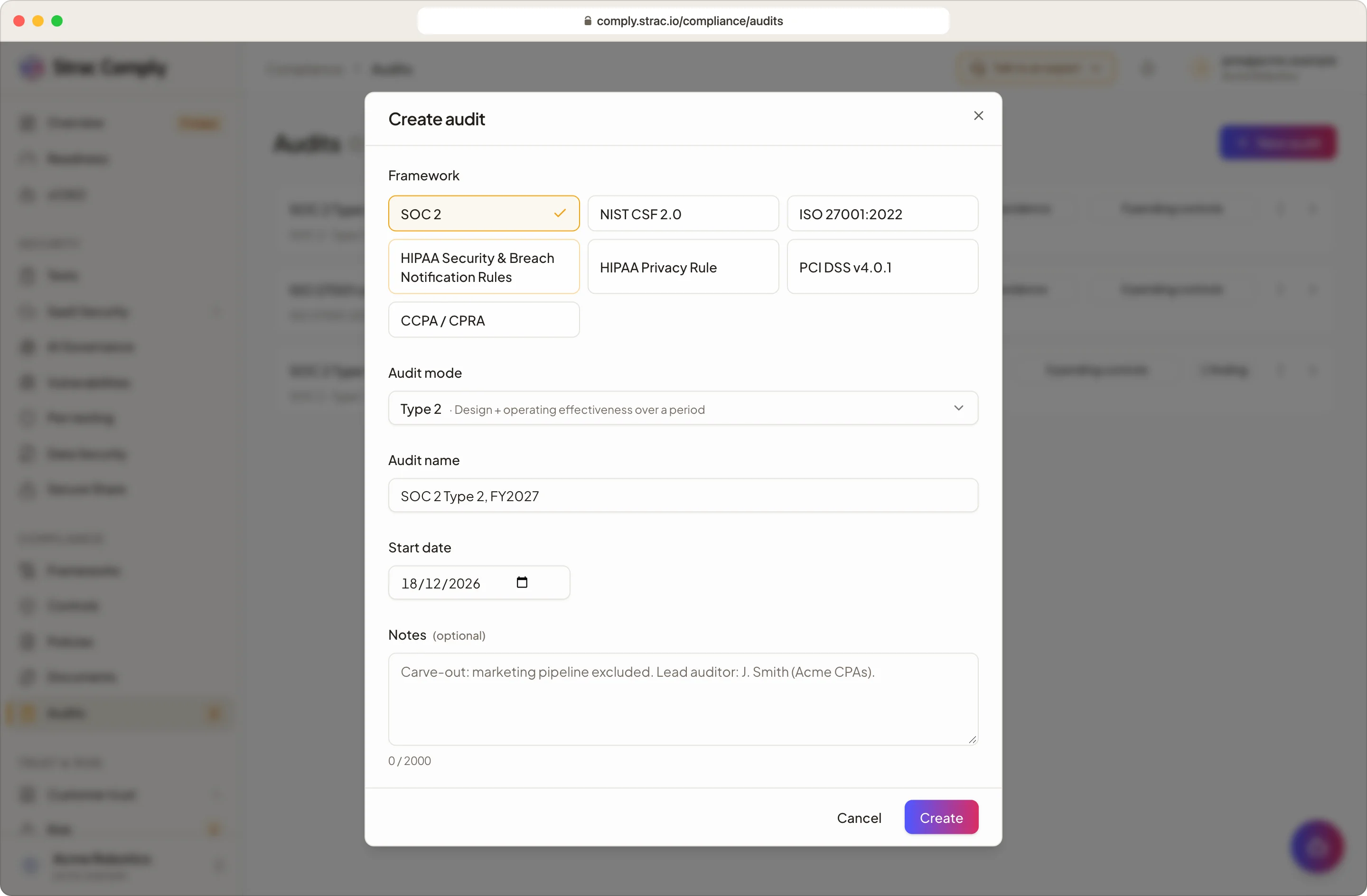
Step 1: Create the audit
Open Compliance > Audits and click New audit. Pick the framework and the audit type. Name the audit and set the start date.
Admin
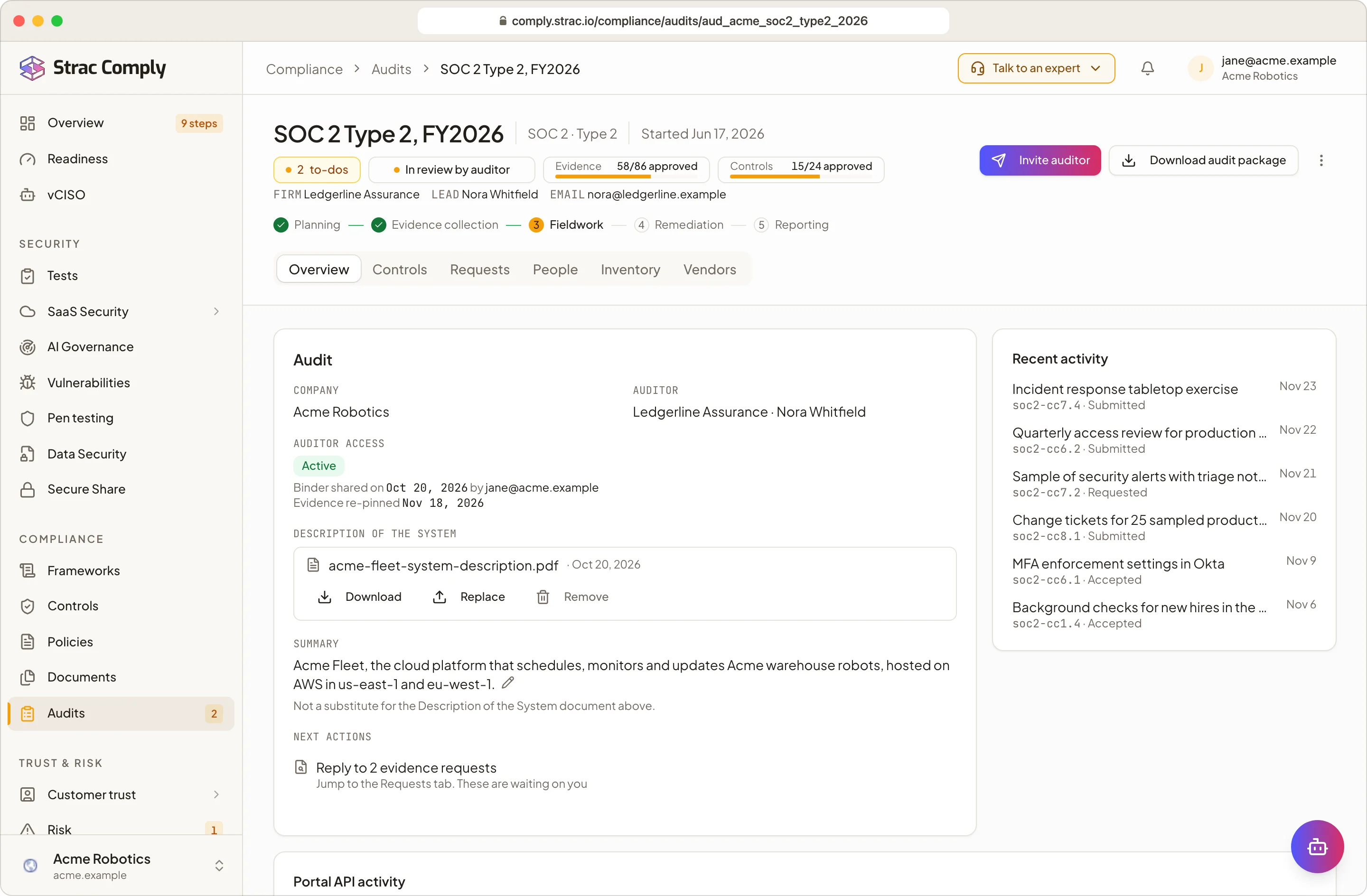
Step 2: Invite your auditor
Open the audit and click Invite auditor. Enter their email and name, and their firm if you like. Then click Send invite.
Admin
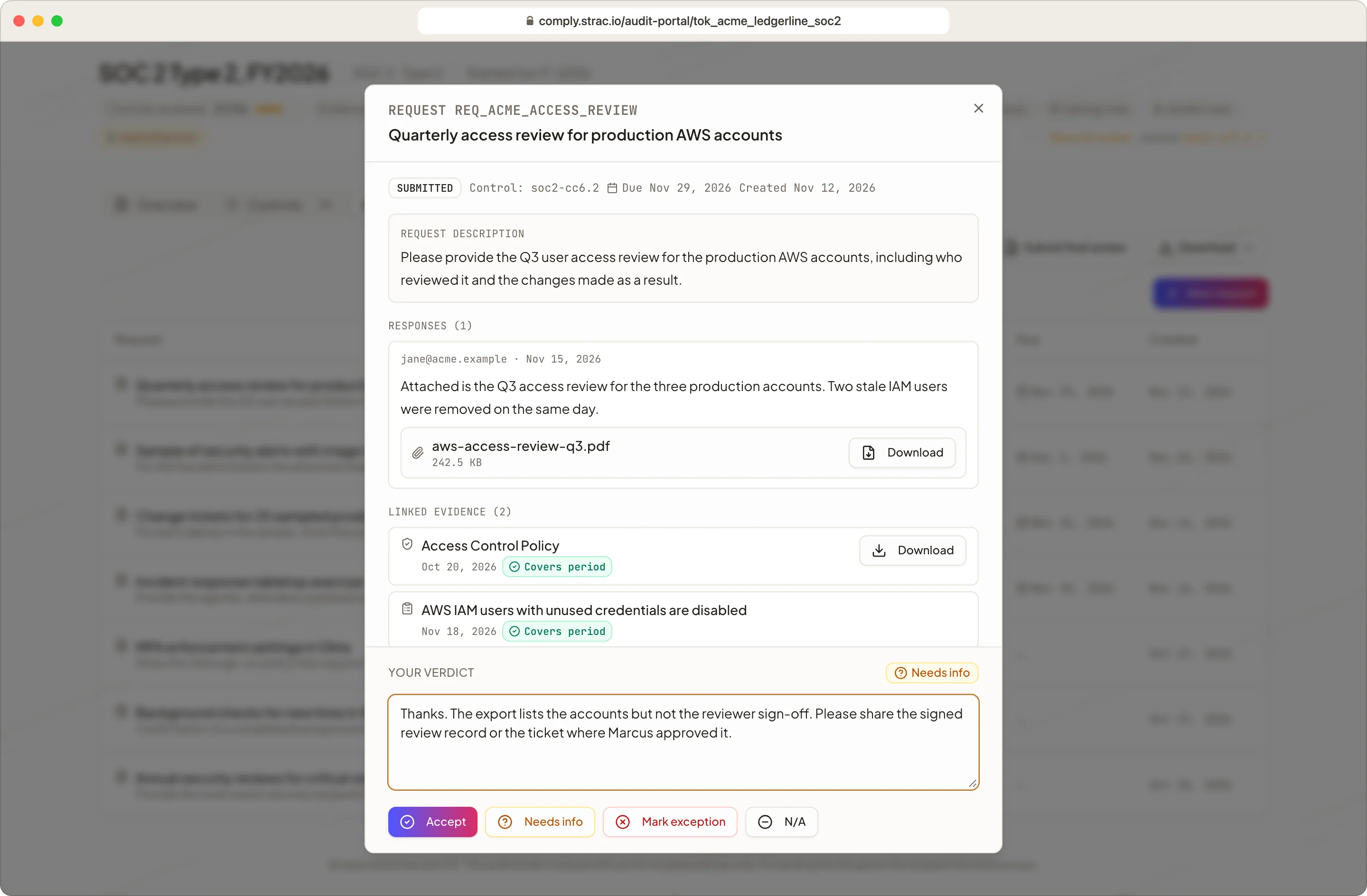
Step 3: Answer requests
Open a request on the Requests tab. Click Add existing document or Attach files, then click Send response. Your auditor sees it in their portal.
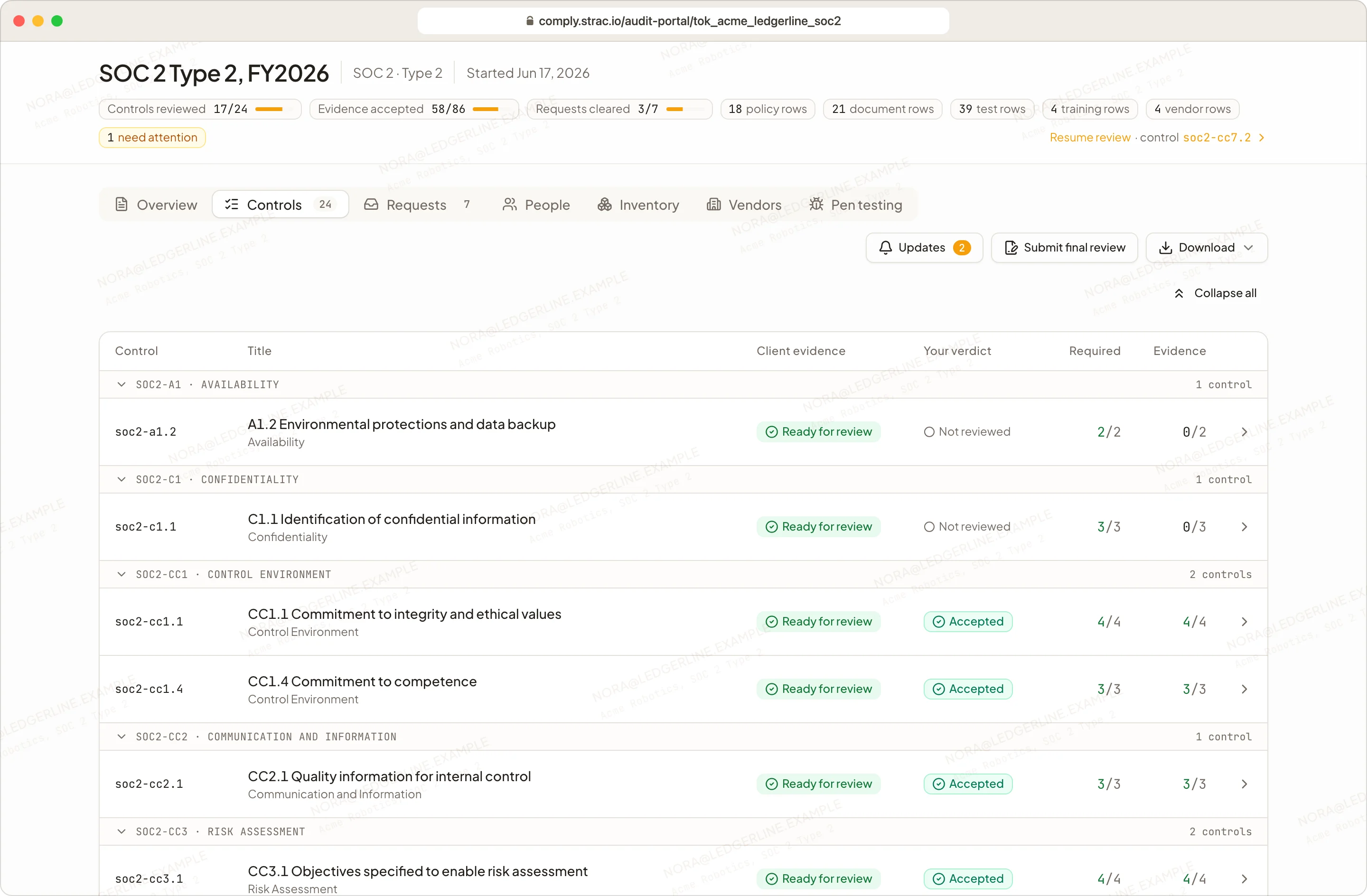
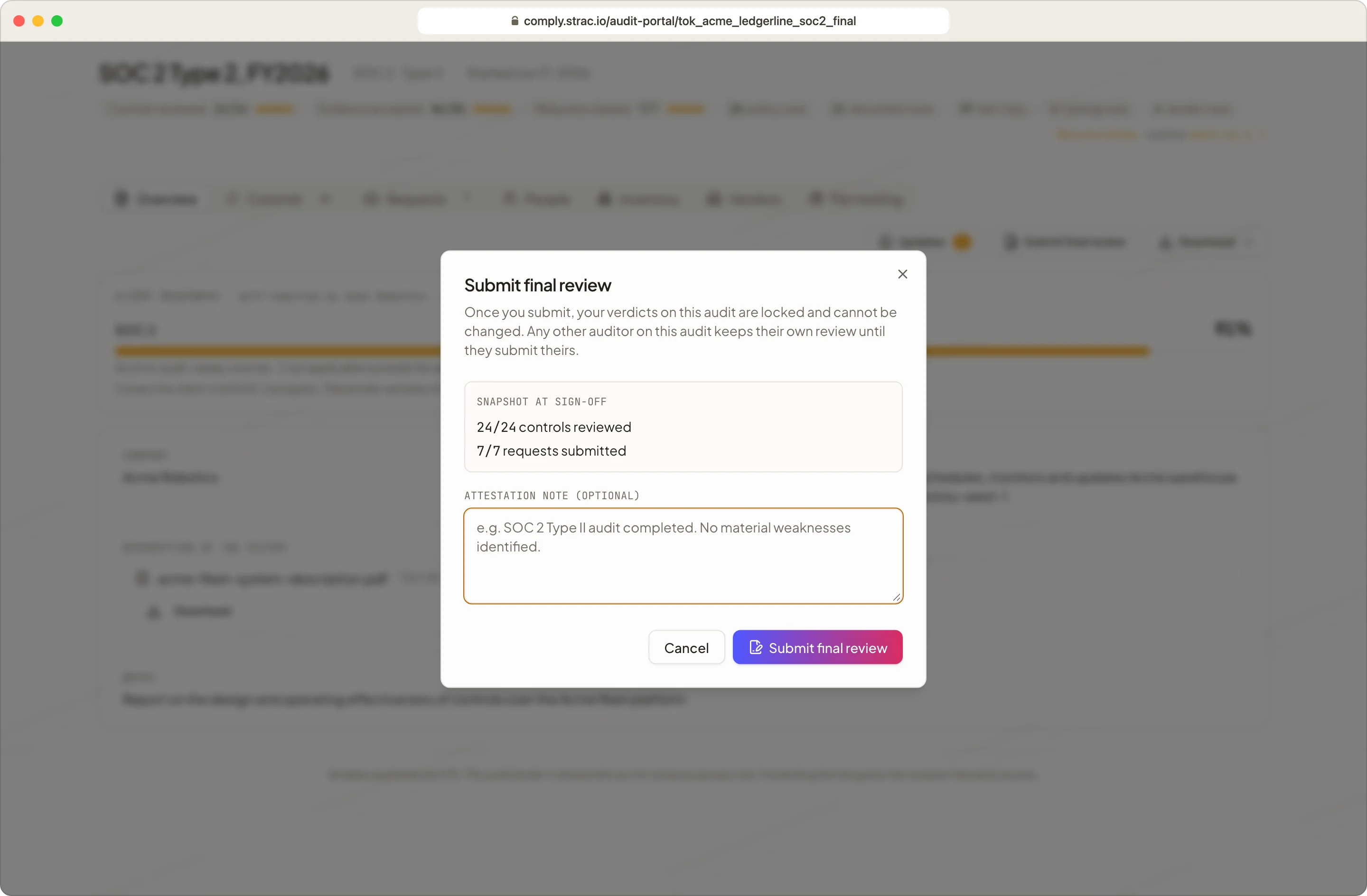
Your auditor opens the invite link, confirms their email with a code and sets a password. Their portal shows the controls, the evidence and the requests for your audit. They give each control a verdict and click Submit final review when they are done.
Which frameworks can I audit?
Each audit covers one framework. Pick the audit type your auditor will run.
| Framework | Audit types | Controls |
|---|---|---|
| SOC 2 | Type 1, Type 2 | 61 |
| ISO 27001:2022 | Stage 1, Stage 2, Surveillance, Recertification | 123 |
| PCI DSS v4.0.1 | SAQ D, ROC | 250 |
| NIST CSF 2.0 | Self-assessment, Third-party assessment | 106 |
| HIPAA Security Rule | Annual Security Risk Analysis | 100 |
| HIPAA Privacy Rule | Self-assessment, Third-party assessment | 108 |
| CCPA | Self-assessment, Third-party assessment | 71 |
Controls is the number of controls Strac Comply tracks for the framework. Your audit uses the ones that apply to you.
Which controls does an audit cover?
An audit is not a control of its own. It is how your auditor tests the controls you already have.
- When you create an audit, Strac Comply draws a sample from the controls that apply to you.
- Each sampled control carries its evidence: test results, policies and documents.
- A control you marked not applicable stays out of the sample.
- If your scope changes later, the audit shows a notice. An admin can draw the sample again before the auditor signs off.
Frequently asked questions
Does my auditor need an account?
Yes. The invite link asks them to confirm their email with a code and set a password, once. They see only the audits they are invited to. Your employees never need one.
Can my auditor change our evidence?
No. Your auditor reads the evidence and records a verdict on each control. Only your team changes the evidence.
Can I see what my auditor sees?
Yes. Click View as auditor on an active invite for a read-only preview of their portal.
Can my AI agent answer auditor requests?
It can read each request and prepare a reply. Nothing reaches the auditor until the reply is sent. A draft your agent prepared shows on the request with a Submit to auditor button.
Can my auditor use their own AI assistant?
Yes, with a key from their auditor account. To turn it off, open Invite auditor and clear Let your auditors use an AI assistant. That stops every key on that audit at once.
Next steps
- Trust portalShare your audit report with buyers you approve.
- Integrations and testsThe test results that become your audit evidence.
- All guidesSet up the rest of Strac Comply, one feature at a time.
New to Strac Comply? Start free trial.