AI Governance
See the apps and AI tools your team connected to company accounts. Record who approved each one and why, revoke what you do not want, and add approved apps to your vendors.
Security-FirstAI Governance is part of the Security-First plan. See plans.
- Finds apps in
- Google Workspace and Microsoft Entra ID
- Scans
- Google Workspace every day, and when you click Rescan
- Who decides
- Owners and admins
Last checked November 27, 2026
How do I check connected AI tools from my AI agent?
Your agent reads the apps Strac Comply found, with the review decision and reason for each connection.
| MCP tool | Access | What you use it for |
|---|---|---|
| list_saas_apps | Read | Apps Strac Comply has discovered, with their risk and review decision when available. Not for viewers. |
| list_vendors | Read | Your vendor list, including the apps you moved in from AI Governance. |
| list_access_reviews | Read | Your access reviews, including reviews of the app grants in Google Workspace. |
Try these prompts
- Which AI apps still need a review decision?
- Who approved Claude, and why?
- Which connected apps have a high risk level?
- Which apps did we not approve?
What your agent gets back. One row per app with its decision, who made it and when. An app nobody reviewed says so.
Decide in the dashboard.
First time? Connect your agent once, then ask.
How do I review the AI tools my team uses?
Connect Google Workspace or Microsoft Entra ID first. Then open AI Governance in the sidebar.
Admin
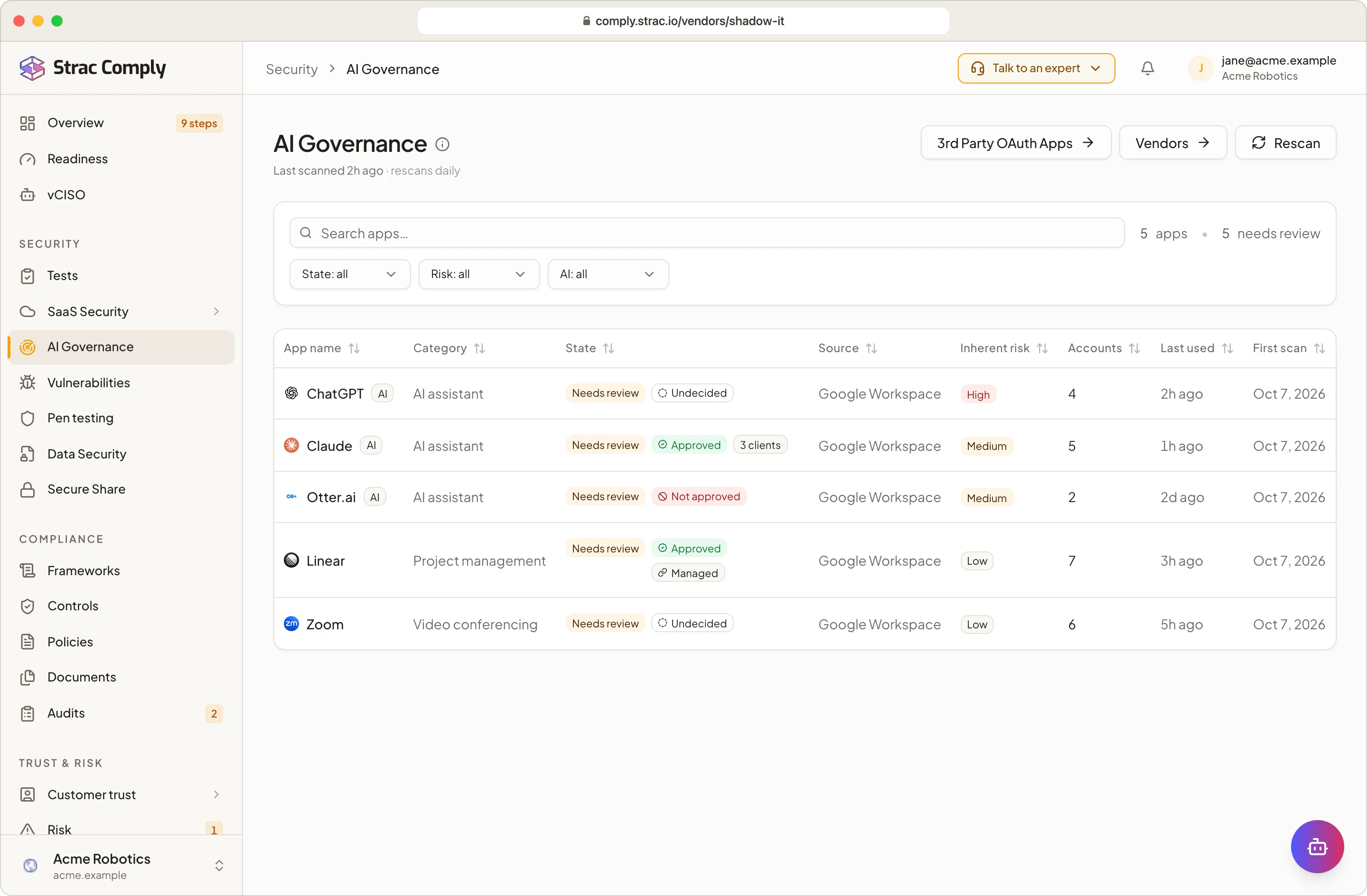
Step 1: See what people connected
Each app shows its category, risk and account count. AI tools carry an AI label.
Admin
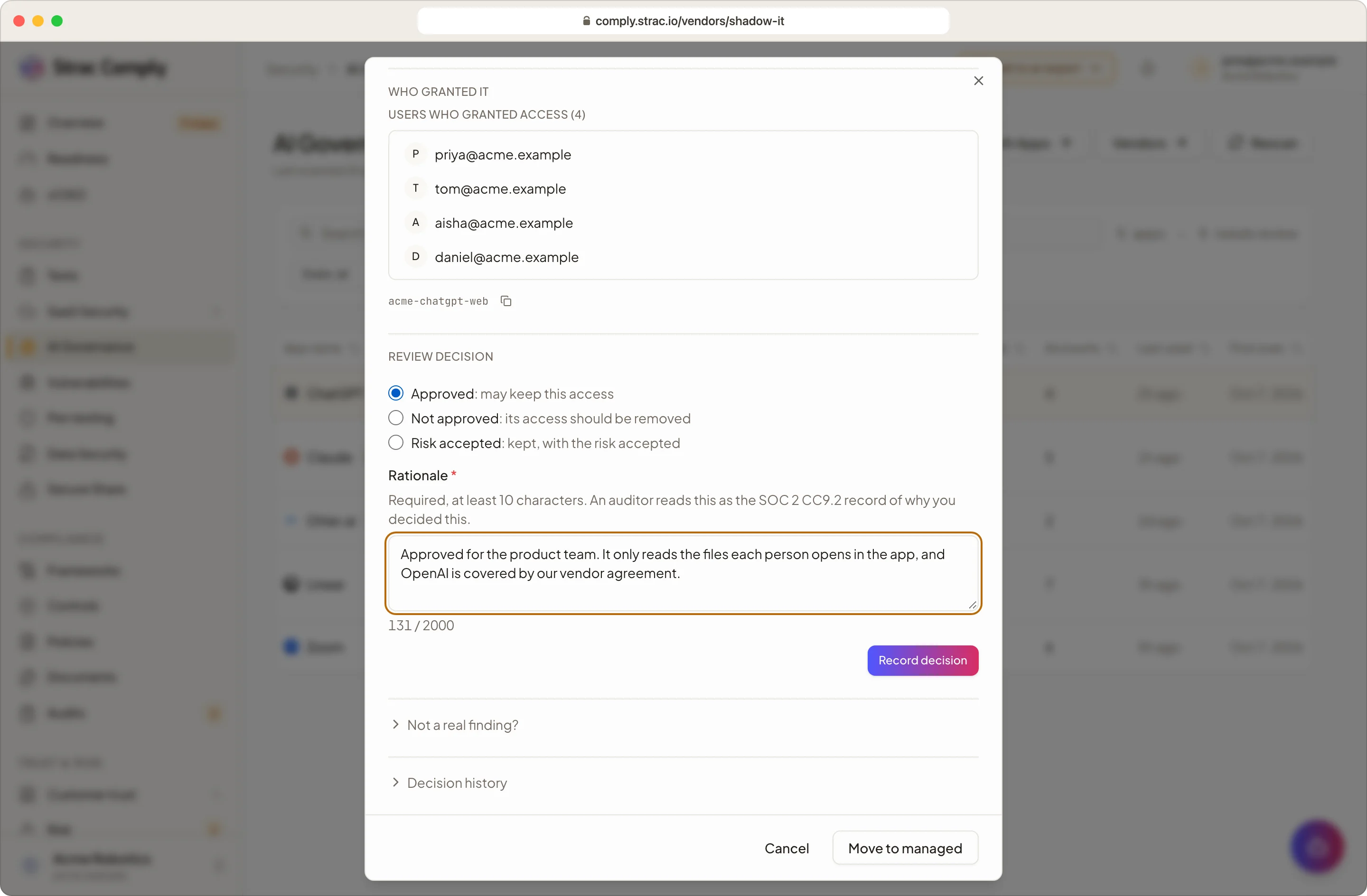
Step 2: Record a decision
Click an app. Pick Approved, Not approved or Risk accepted, write why, then click Record decision.
Admin
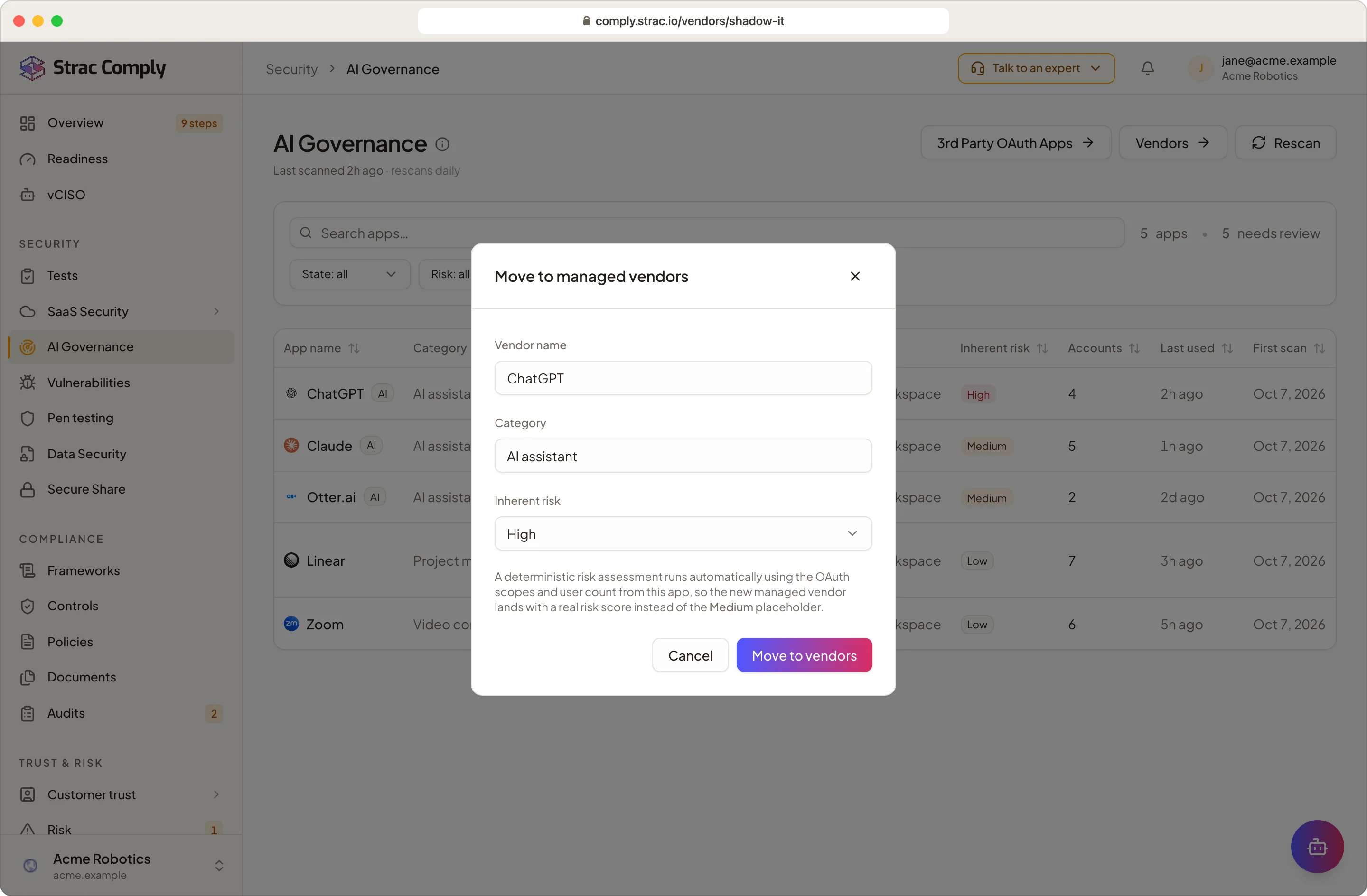
Step 3: Add it to your vendors
Click Move to managed. Check the vendor name, category and inherent risk, then click Move to vendors. Strac then requests a risk assessment from the app's access scopes and user count.
When you pick Not approved, the dialog may offer Record and revoke. Click it to remove the Google Workspace grants the scan found. The result shows how many it removed, then click Done. If the dialog says why it cannot, follow what it says. Once you remove the access yourself, click Mark as revoked. For Microsoft Entra ID, remove the access in Entra, then click Mark as revoked.
What does each app record show?
| Field | What it means |
|---|---|
| Category and AI label | The kind of app. Known AI tools are labeled by name. |
| Inherent risk | How risky its permissions are, from low to critical, or unclassified |
| Accounts | Who granted the app access to their work account. Microsoft Entra ID gives a count. Check admin consent for the whole organization in Entra. |
| Permissions | The scopes people granted, in the app's details |
| Review decision | Approved, not approved or risk accepted, with the reason, who decided and when |
| Last used and first scan | The latest Google Workspace token activity for the app, and when Strac Comply first recorded it |
The list is what the last scan found. The page shows when the last Google Workspace scan ran.
Does AI Governance read our prompts?
No. It reads which apps people granted access to, and with which permissions. It does not see what anyone types into an AI tool.
To redact or block sensitive data before it reaches an AI tool, see Data security with Strac DLP.
Which controls does it count toward?
A review decision records who decided, when and why. For control evidence, use the vendor review. An app you move into Vendors can get a vendor review there. A completed review counts toward these controls as supporting evidence.
| Framework | Controls |
|---|---|
| SOC 2 |
|
| ISO 27001:2022 |
|
| PCI DSS v4.0.1 |
|
| NIST CSF 2.0 |
|
| HIPAA Security Rule |
|
| HIPAA Privacy Rule |
|
| CCPA |
|
Codes use each framework's own numbering: SOC 2 Trust Services Criteria, ISO/IEC 27001:2022 Annex A, PCI DSS v4.0.1 and NIST CSF 2.0. HIPAA codes cite sections of 45 CFR Part 164. CCPA codes cite the CCPA statute and its regulations.
Frequently asked questions
Which AI tools does it find?
The apps people granted access through Google Workspace or Microsoft Entra ID with their work account. Known AI tools are labeled by name.
Does it find AI tools used without a work account?
Partly. AI tools found on computers lists known AI tools installed on computers that report their apps. For AI tools in the browser, see Data security with Strac DLP.
Who can record decisions?
Owners and admins record decisions and revoke access. Members can view the page. Viewers cannot open it, and their AI agents cannot read it.
Can it remove an app's access?
Yes, for most Google Workspace apps. The result shows how many grants it removed. For Microsoft Entra ID, remove the access in Entra, then click Mark as revoked.
Is it an AI policy?
No. It is the record of which apps people granted access to, and who approved them.
How often does it scan?
Google Workspace is scanned every day, and an out-of-date scan shows an amber badge. Microsoft Entra ID is read when you open the page. Click Rescan to scan again now.
Questions that apply to every guide, such as who needs an account, are in the guides FAQ.
Next steps
- Data security with Strac DLPRedact or block sensitive data before it reaches ChatGPT or Claude.
- SaaS access reviewsReview accounts and app grants, and keep the sign-off for your audit.
- Vulnerability scanning and AI Pen TestScan your web apps and retest your fixes.
- Integrations and automated testsConnect Google Workspace or Microsoft Entra ID to start finding apps.
New to Strac Comply? Start free trial.