Adding and managing auditors
Give your audit firm access to one audit at a time. Each auditor gets their own account, sees only the audits you invite them to and never changes your evidence.
- Who invites
- Owners and admins
- Access lasts
- Until you revoke it or delete the audit
- Invites
- Up to 10 per audit each hour
Last checked November 27, 2026
Can my AI agent manage auditor access?
Your agent reads each audit and tells you what your auditor did and what they still need. You invite, resend and revoke auditors in the dashboard.
| MCP tool | Access | What you use it for |
|---|---|---|
| list_audits | Read | Your audits with their status, so you can pick the one to invite an auditor to. |
| get_audit | Read | One audit with counts of its requests, the auditor's decisions and its findings. |
| get_audit_verdicts | Read | Each control your auditor reviewed, with their verdict and comment. |
| list_audit_requests | Read | The requests on the audit, and which of them wait on your team. |
| get_auditor_access_settings | Read | Whether your auditors must use two-factor sign-in, and who changed that rule and when. |
Try these prompts
- Has our auditor started reviewing the SOC 2 audit yet?
- Which controls need more information for the auditor?
- List the auditor requests that nobody on our team has answered.
- How many sampled controls has the auditor accepted so far?
- Do our auditors have to use two-factor sign-in?
What your agent gets back. Each audit in plain words: its status, the auditor’s decision on each control and the requests still open.
Your auditor can connect their own AI assistant too. This page covers that further down.
First time? Connect your agent once, then ask.
How do I invite an auditor?
Admin
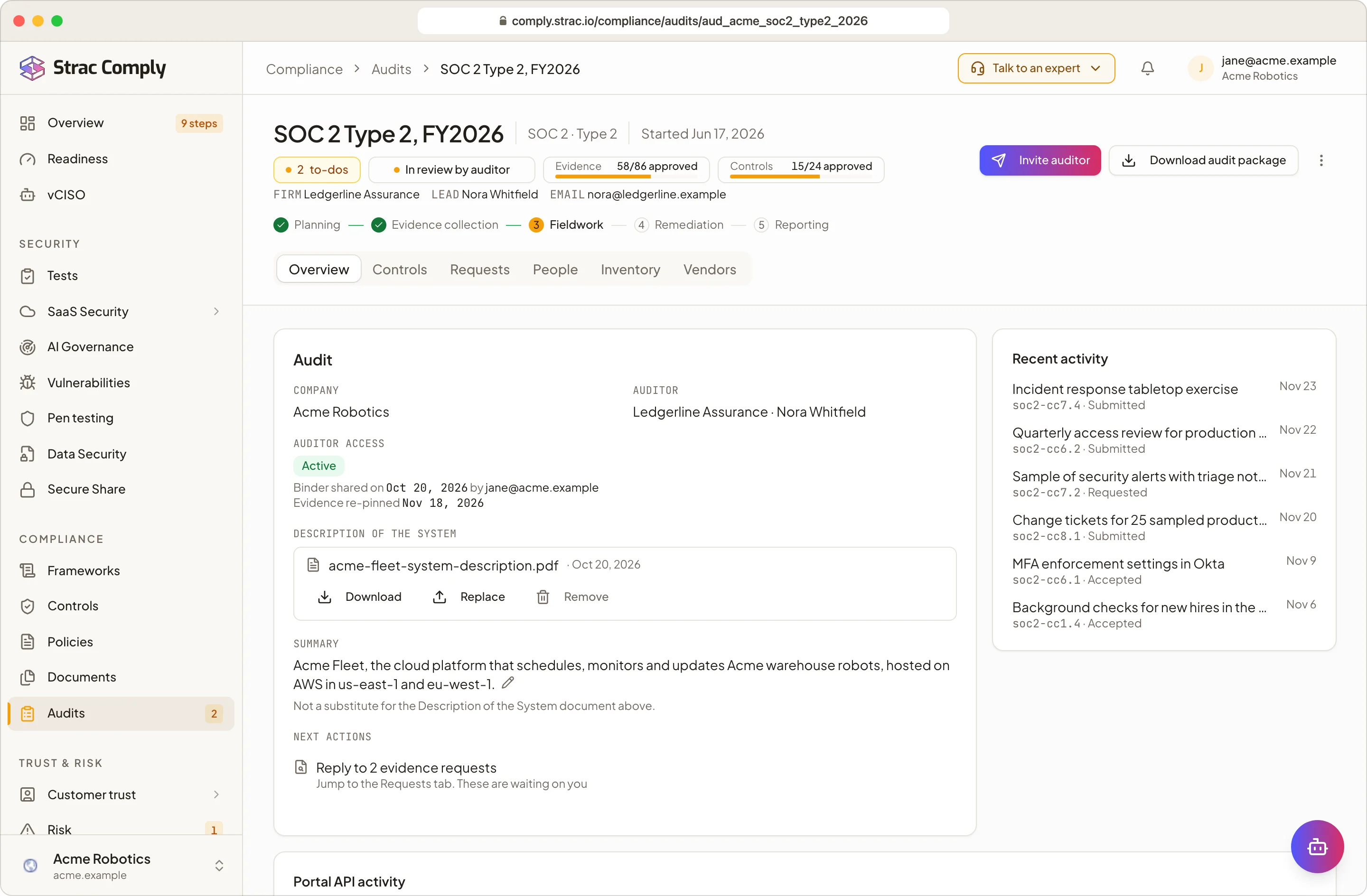
Step 1: Open the audit
Open Compliance > Audits and click the audit. Then click Invite auditor at the top.
Admin
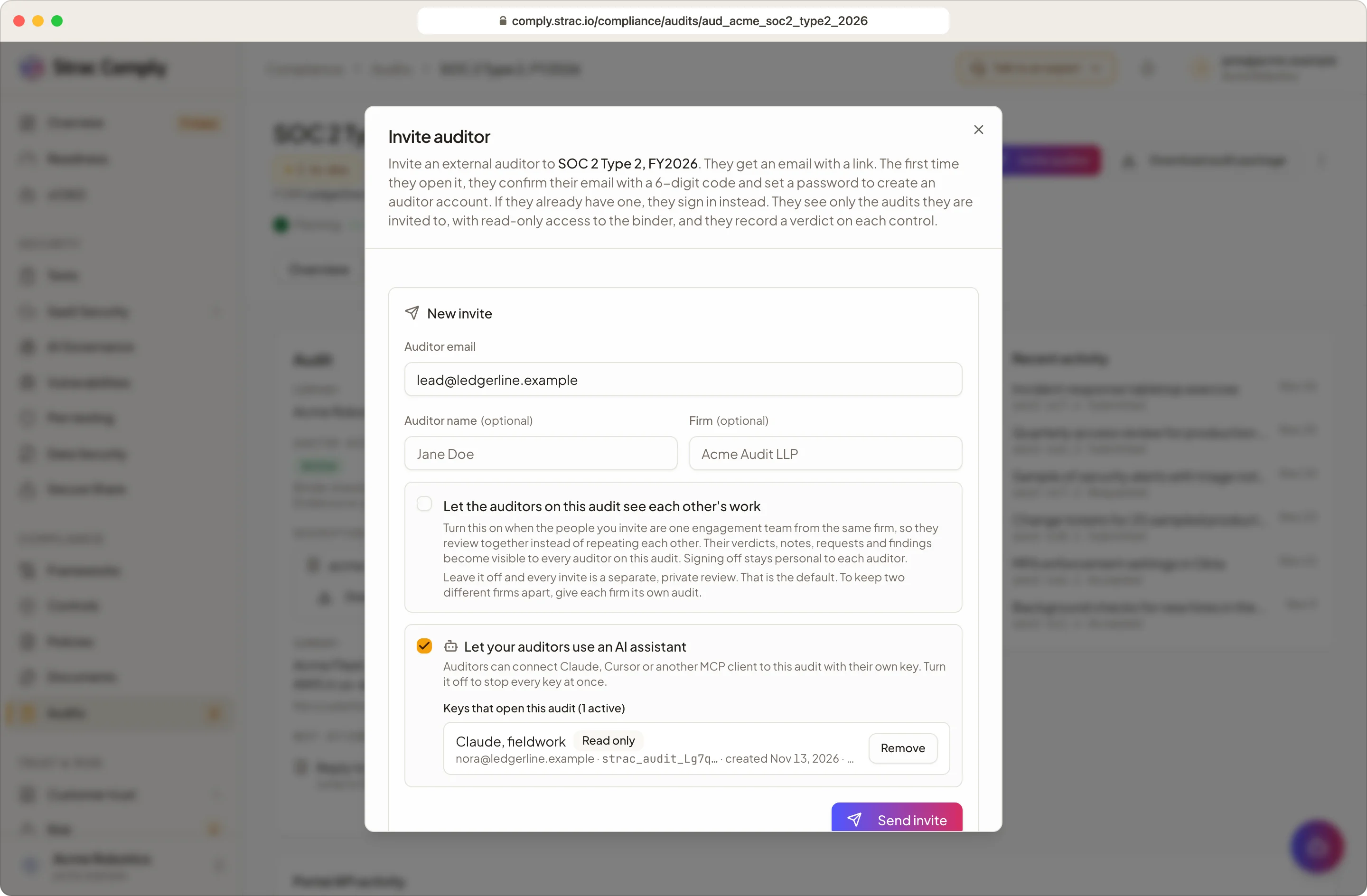
Step 2: Enter your auditor
Type the Auditor email. Add their name and Firm if you like. Then click Send invite.
Admin
Step 3: Check the invite
The auditor appears under Active invites. Each row shows when you sent the invite and what you can do next.
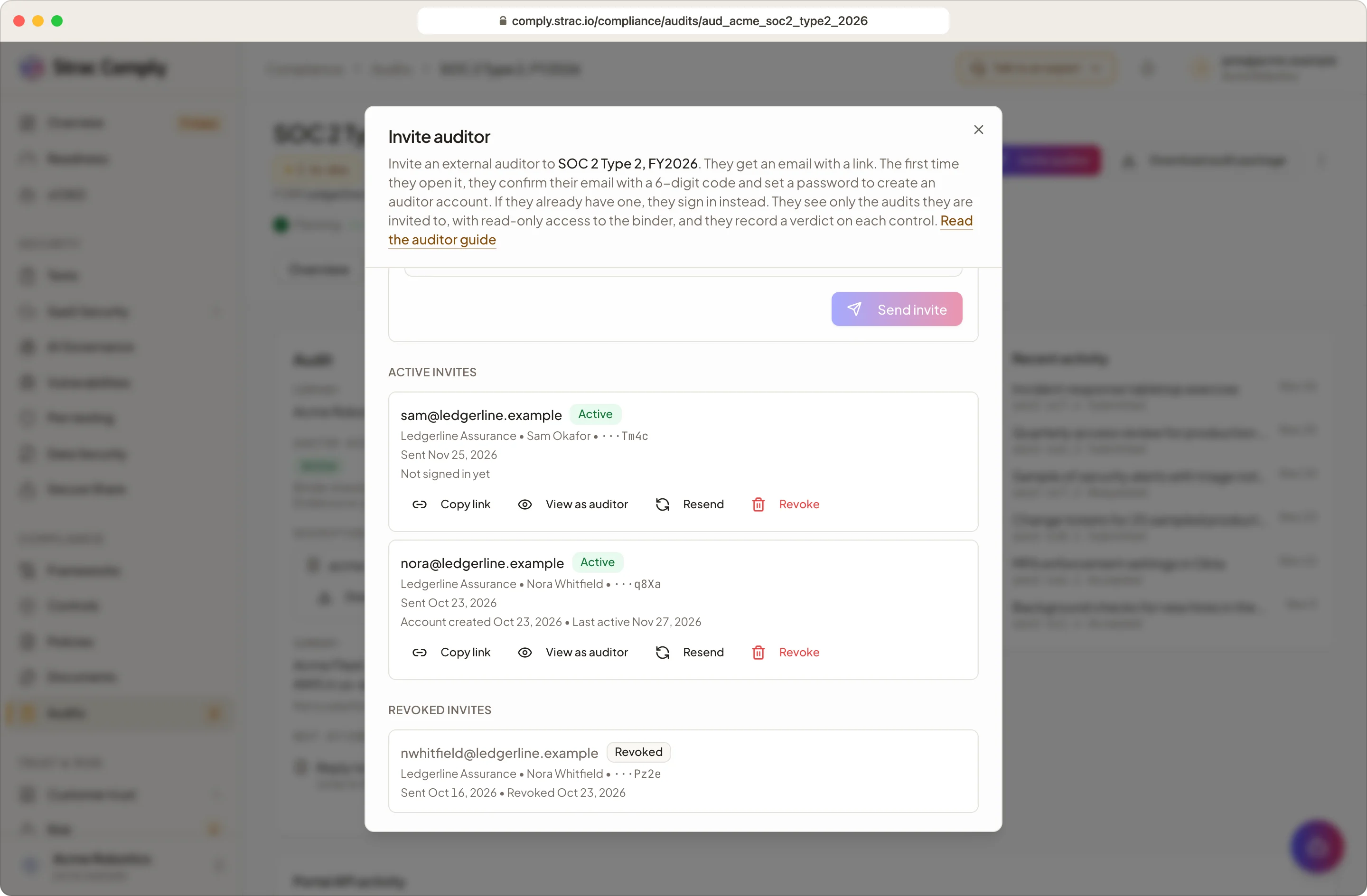
Strac Comply emails the link to your auditor. The dialog also shows the link once, so you can copy it and send it another way.
Your first invite shares the sampled controls with your auditor and moves the audit into review. Invite when you are ready for them to look.
Only owners and admins can invite, resend or revoke. You can invite an auditor to any audit that is not complete, before or after its start date.
You can send up to 10 invites per audit each hour. If the address already has an invite, Strac Comply says Already invited and points to its row.
Can I invite several auditors or audit firms?
- Invite each person on the engagement team with their own email. One invite is for one person on one audit.
- Tick Let the auditors on this audit see each other's work when they are one team from one firm. They then share verdicts, notes, requests and findings. The box applies at once to every auditor on the audit.
- Leave that box clear to keep each review private. Each auditor always signs off on their own.
- Give each audit firm its own audit. That keeps two firms apart.
- An auditor on several audits uses one account. After they sign in, Your engagements lists every audit they are invited to.
What does my auditor receive, and how do they sign in?
The invite comes from Strac Comply at noreply@comply.strac.io. The subject names the audit, your company, the framework and the Firm if you added one. The email names the person who sent the invite, and a reply goes to them.
Auditor
Step 1: Open the invite
Click Open audit binder in the email. Strac Comply then emails them a 6-digit code.
Auditor
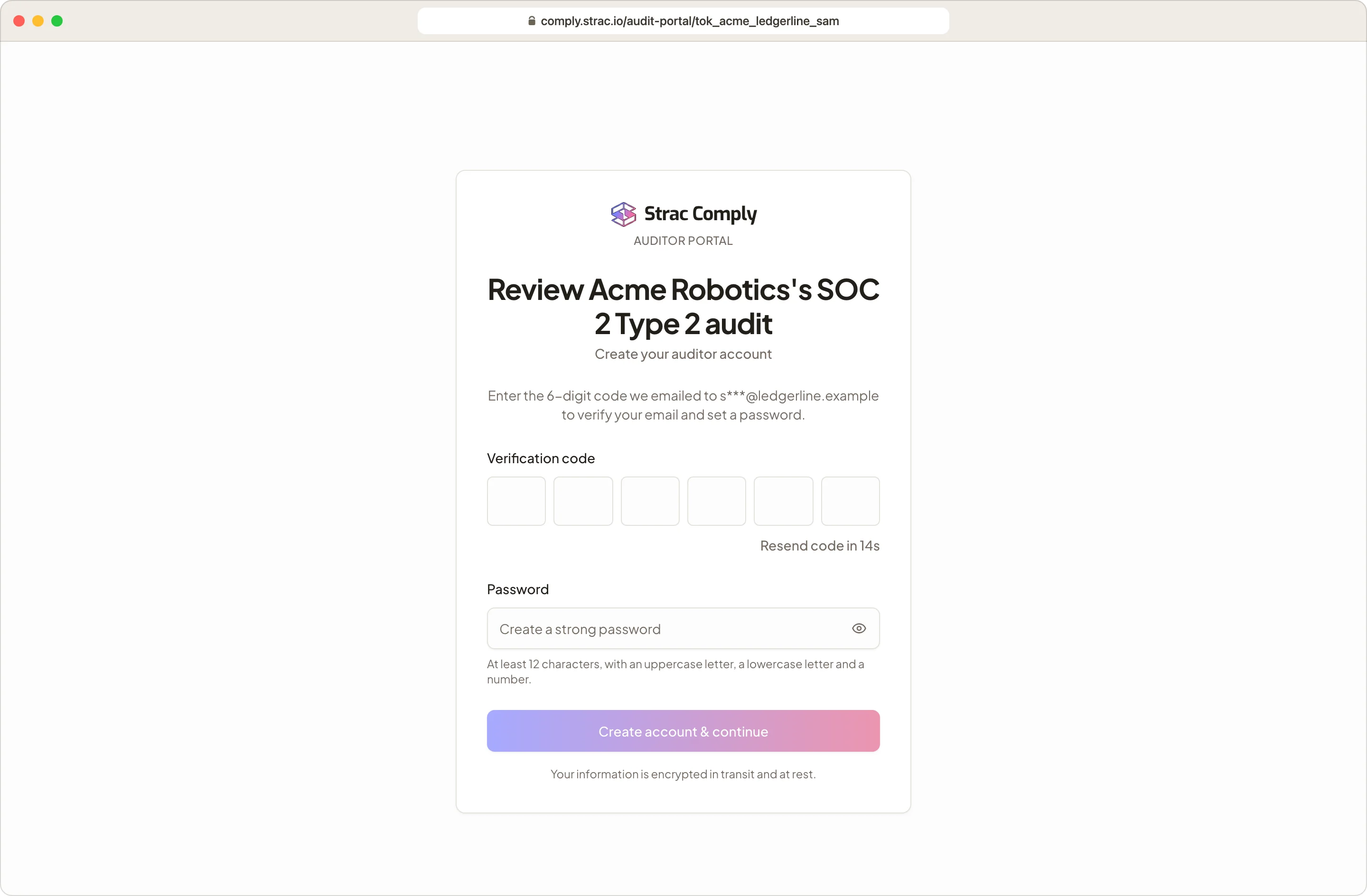
Step 2: Create the account
Enter the code and set a password, then click Create account & continue. The code works for 15 minutes.
Auditor
Step 3: Choose how to review
Set up an authenticator app for two-factor sign-in. If your company does not require it, they can click Skip for now. Then pick In the browser or With an AI assistant.
An auditor who already has an auditor account signs in with it instead.
The password needs at least 12 characters, with an uppercase letter, a lowercase letter and a number.
Next time, your auditor signs in at comply.strac.io/audit-portal/sign-in with their email and password. A sign-in lasts up to 12 hours.
The link opens the audit only after the invited auditor signs in to their own account. Ask your auditor to keep the link private.
If the invite lands in spam
Can I require two-factor sign-in for my auditors?
Yes. Owners and admins go to Settings > Security and click Require two-factor under Require two-factor for auditors. It is off until you turn it on.
Before you confirm, Strac Comply lists the auditors on your open audits who have not set up two-factor yet. They keep access. The portal asks them to set it up the next time they open the audit, and they cannot skip that step.
- If an auditor has the audit open when you turn it on, the setup step opens over the page. What they typed stays on the page.
- Setting up two-factor ends the auditor’s other sign-ins. Within the hour they sign in again with a code from their app.
- A browser where your auditor signed in before they set up two-factor can keep reading for up to 1 hour.
- Your auditors’ existing AI assistant keys stop working for your audits. They make a new key after they set up two-factor.
- While it is on, each invite in the audit shows whether that auditor has two-factor set up. An auditor who has not signed in to the audit yet shows as not known.
- The setting keeps a record of who turned it on or off and when.
If your auditor loses their authenticator
What can my auditor see and do?
Your auditor works in their own portal. It holds only the audits you invite them to.
| Your auditor can | Your auditor cannot |
|---|---|
| Read the Overview, Controls, Requests, People, Inventory, Vendors and Pen testing tabs. | See controls outside the audit sample, or your other audits. |
| Open the evidence on each sampled control: test results, policies, documents and Evidence Agent captures. | Change, add or delete your evidence. Only your team changes evidence. |
| Download evidence files and the full audit package. | Open your dashboard, your integrations or your employee accounts. |
| Record a verdict on each control and request, raise findings and ask your team for evidence. | See another auditor's work, unless you share review on that audit. |
| Record a conclusion on each finding, then click Submit final review to sign off. | Sign off from an AI assistant. Sign-off happens in the browser. |
Can my auditor use an AI assistant?
Yes. Your auditor can connect Claude, Cursor or another MCP client to the audit with a key from their auditor account.
- A key lasts 7, 30 or 90 days. An auditor can hold up to 10 active keys.
- The auditor picks the audits a key opens, up to 25, and whether it can only read or also review.
- A password reset revokes the keys of that auditor, and they create new ones. If a key may be exposed, also click Remove on it to take it off this audit.
You decide per audit. In Invite auditor, the Let your auditors use an AI assistant box is on by default. Clear it to stop every key on that audit at once.
Under the box, Keys that open this audit lists each key with its owner and expiry date. Click Remove to take one key off this audit.
Your auditor can find the setup steps in the MCP docs for auditors.
How do I check what my auditor sees?
Click View as auditor on an active invite. A read-only copy of that auditor's portal opens in a new tab.
The preview works for about 2 hours. Nothing you do there reaches the audit, and it never counts as your auditor's activity.
How do I know my auditor opened the audit?
- In Invite auditor, each row says Not signed in yet until the auditor creates their account. Then it shows Account created and Last active.
- On the audit's Overview tab, Portal API activity lists each auditor's visits by day. Verified means a signed-in auditor account.
- Owners and admins get a bell notice when an auditor creates their account, opens the portal or creates an AI assistant key.
- The Audits page warns you when nobody opens an audit within 7 days of the latest invite, or for 14 days after the last visit.
How long does access last, and how do I remove it?
An invite has no end date. It works until you revoke it or delete the audit. A new link stops the old link and keeps the access.
- Revoke stops the link at once. The auditor can no longer open the audit, and their AI assistant keys stop working on it. A file download they already opened can work for up to 1 hour.
- Resend emails a new link and stops the old one. You can resend once every 5 minutes.
- Copy link makes a new link without an email, and also stops the old one. Resend then waits 5 minutes.
- A revoked invite moves to Revoked invites. To give access again, send a new invite. Your auditor then makes a new AI assistant key.
- Deleting the audit ends every invite on it.
When your auditor has signed off and no longer needs to read the audit, revoke their invite.
What if my auditor cannot get in?
| What the auditor sees | What to do |
|---|---|
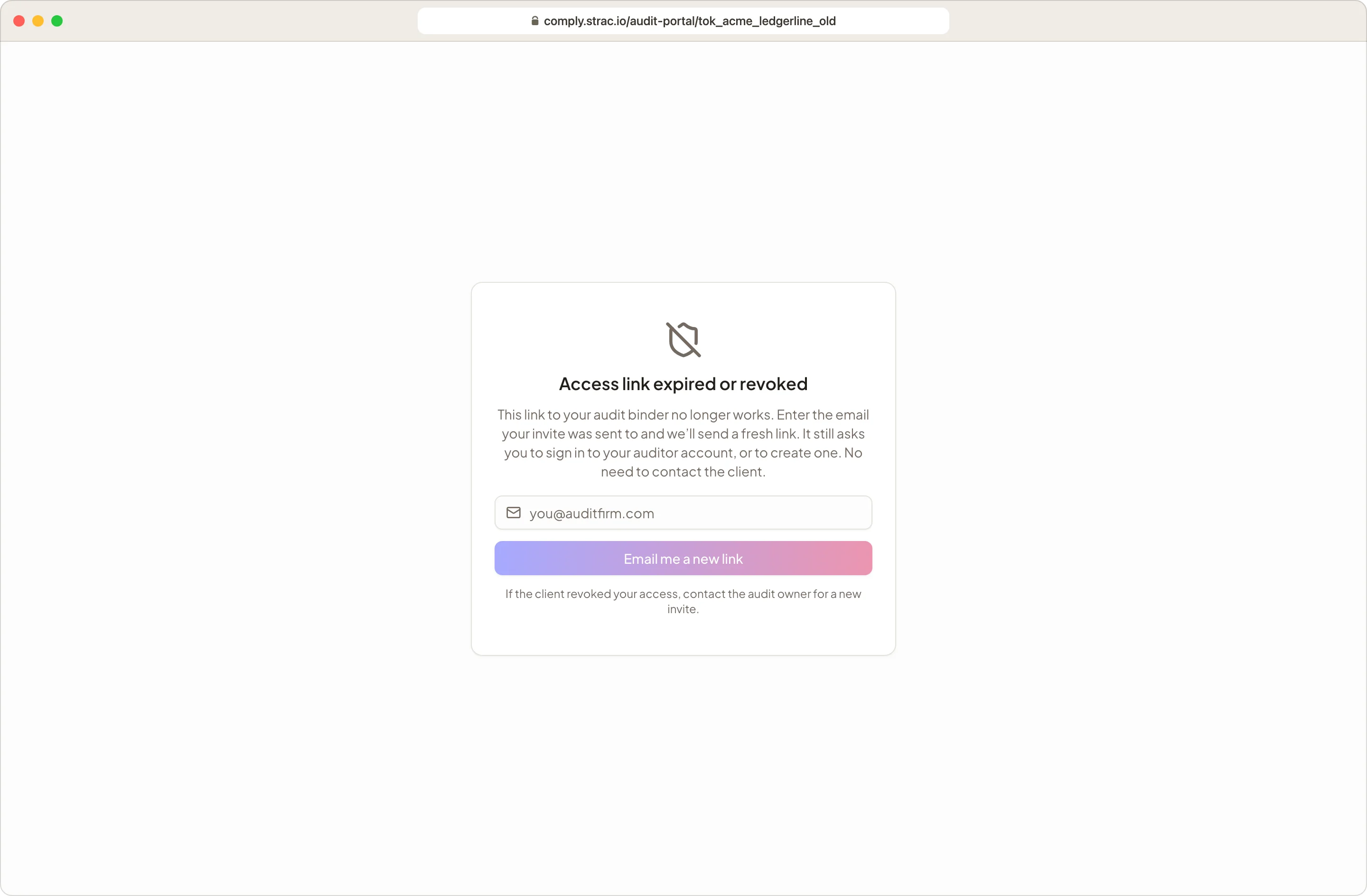
| Access link expired or revoked | The link was replaced or revoked. The auditor enters their invite email and clicks Email me a new link. If you revoked the invite, send a new one. |
| No invite email | Ask them to check spam and allow noreply@comply.strac.io. Then click Resend, or Copy link and send it yourself. |
| No code, or the code expired | Click Resend code on the same screen. A code works for 15 minutes. |
| A forgotten password | Click Forgot password? on the sign-in screen, then reset it with a code from email. |
| Signed in with another account | Click Sign out & switch account, then sign in with the invited email. |
| The invite went to the wrong address | Revoke that invite, then invite the right email. |
| Set up two-factor authentication, with no way to skip | Your company requires two-factor for auditors. The auditor sets up an authenticator app, then opens the audit. |
| A lost authenticator app | The auditor emails support@strac.io. Strac support confirms with them and with you before it resets two-factor. |
A link from Email me a new link must be opened within 24 hours. Each address can ask for up to 3 links a day.
Frequently asked questions
Can I add a whole audit firm at once?
No. You invite each auditor by email. To let one firm's team work together, tick Let the auditors on this audit see each other's work.
Can my auditor start before the audit period begins?
Yes. You can invite an auditor as soon as you create the audit. The start date does not limit their access.
Can I invite an auditor to an audit I already created?
Yes. Open the audit and click Invite auditor. This works on any audit that is not complete.
Does my auditor see evidence I add after the invite?
Yes. Strac Comply refreshes the audit binder every day while the audit is open, so new evidence on a sampled control reaches your auditor.
Is it safe to forward the invite email?
Do not forward it. Invite each person with their own email. The link opens the audit only after the invited auditor signs in to their own account.
Questions that apply to every guide, such as who needs an account, are in the guides FAQ.
Next steps
- AuditsCreate the audit and answer your auditor's requests.
- Secure ShareSend a file to your auditor outside the audit.
- Trust portalShare the finished audit report with buyers you approve.
New to Strac Comply? Start free trial.