Evidence Agent for Chrome
The Evidence Agent is a Chrome extension that takes your audit screenshots. Tell it what you need, and it opens the page and captures it. You pick the controls and upload it.
- Works in
- Google Chrome, signed in to Strac Comply
- Captures
- Any admin page you can sign in to
- Plans
- Every plan, and the free trial
Last checked November 27, 2026
Can my AI agent capture evidence for me?
The Evidence Agent runs in your own browser, so you start each task in Chrome. Your AI agent works beside it over MCP. It finds the controls that still need evidence, and it uploads files you already have.
| MCP tool | Access | What you use it for |
|---|---|---|
| get_next_actions | Read | The next steps to audit-ready, including the documents and evidence to collect. |
| get_control | Read | One control with its mappings, completion and evidence counts. |
| list_documents | Read | Your documents and uploads, with their status. Uploads also show their linked controls. |
| upload_document | Write | Upload a file you already have, such as an export or a report, and file it on one or more controls. |
Try these prompts
- What evidence is still missing for SOC 2?
- What does SOC 2 CC7.4 still need?
- Upload ~/Downloads/on-call-schedule.pdf as evidence for CC7.4.
- List the evidence files we uploaded this month and their controls.
What your agent gets back. The controls that still need evidence, with what each one asks for. After an upload, the new document and its file details.
First time? Connect your agent once, then ask.
How do I capture evidence with the Evidence Agent?
Connect your tools first, so tests collect what they can. Use the Evidence Agent for the admin pages no integration reads.
Admin
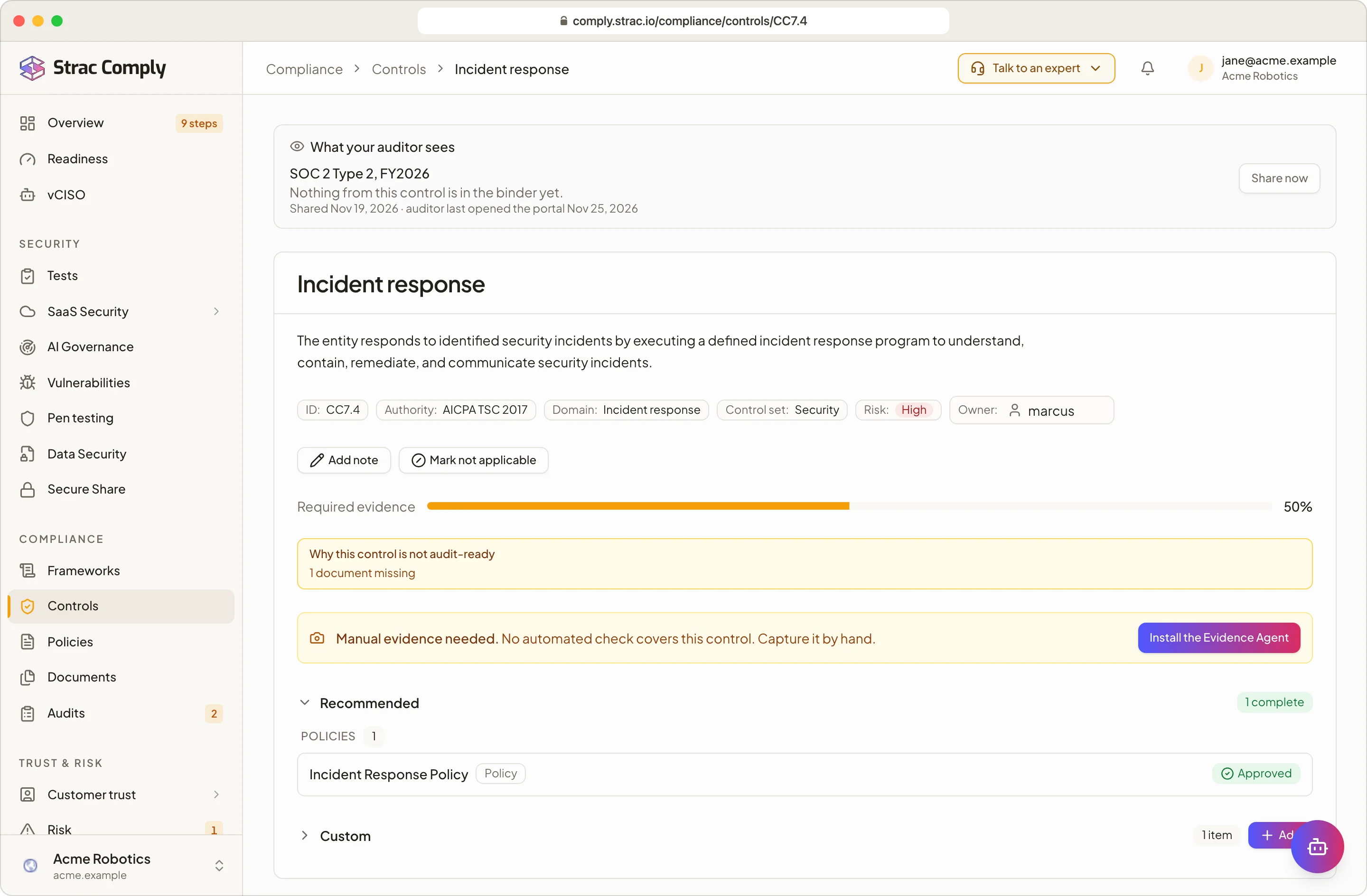
Step 1: Find a control that needs it
Open a control. If it shows Manual evidence needed, capture that evidence with the Evidence Agent.
Admin
Step 2: Add it to Chrome
Click Install the Evidence Agent, then Add to Chrome. Then open or reload Strac Comply in the same Chrome profile, so the extension signs in.
Admin
Step 3: Describe and capture
Click the Strac Comply icon in Chrome. Type what you need, such as
capture this page.
You can also ask for more, such as "go to PagerDuty and capture the on-call schedule". Open the tool's own page before you start the task. The agent opens the page, then shows you the screenshot.
Before you upload, click Redact and drag a box over anything sensitive. Pick the controls under Map to control, where up to three AI suggestions appear. Then click Redact & Upload, or Upload Evidence if you drew no boxes. Upload each capture before you start the next one.
What does each capture record?
| Record | What you get | Why it matters |
|---|---|---|
| Date and time | The date, time and time zone, stamped on the image | Anyone who opens the image sees when it was taken. |
| Captured by | The email you signed in with, stamped on a tab capture | A tab capture shows who took it. |
| Page address | The page address, shortened and without its query, stamped on the image | Anyone who opens the image sees where it came from. |
| Redactions | Black boxes drawn into the image before it is uploaded | You decide what the uploaded image hides. |
| Controls | The controls you picked, from your selected frameworks | The capture shows up on each control you picked. |
In Full Screen mode the capture usually shows the screen you share, with no stamp. Check the preview before you upload.
Each capture you upload is saved to your Documents and marked May contain secrets.
What does the Evidence Agent read?
It reads an admin page only when you ask it to, such as when you start a capture. On Strac Comply tabs it reads your sign-in to stay connected. Strac's AI then reads the page and a screenshot of the tab to pick the next step and suggest controls.
That screenshot is taken before you redact, and it shows what the page shows. Do not run it on pages that show passwords or keys, and redact anything sensitive before you upload.
Which controls can I file a capture on?
Any control in a framework you selected. The agent suggests up to three, and you confirm them or pick others.
| Framework | Controls |
|---|---|
| SOC 2 | 61 |
| ISO 27001:2022 | 123 |
| PCI DSS v4.0.1 | 250 |
| NIST CSF 2.0 | 106 |
| HIPAA Security Rule | 100 |
| HIPAA Privacy Rule | 108 |
| CCPA | 71 |
A capture is evidence you collected, filed on the controls you picked.
Frequently asked questions
Do I need a Strac Comply account?
Yes. The extension files evidence into your workspace and signs in from your open Strac Comply tab in the same Chrome profile.
Who can use it?
Owners, admins and members. Viewers cannot run the agent or upload evidence.
Which browsers does it work in?
Google Chrome. Install it from the link on the Evidence Agent page.
Can I black out sensitive data?
Yes. Click Redact, drag boxes over the data, then click Redact & Upload. The boxes are drawn into the image before it is uploaded. Strac's AI may see the tab first to suggest controls, so hide sensitive data before you capture.
Does it replace integrations?
No. Connect a tool when Strac Comply has an integration for it. Use the Evidence Agent for admin pages no integration reads.
Where do my captures go?
Into Documents in your own workspace, filed on the controls you picked. When one of those controls is in an audit sample you share, your auditor can open the capture in their portal.
Questions that apply to every guide, such as who needs an account, are in the guides FAQ.
Next steps
- Integrations and automated testsConnect your tools first, so tests collect evidence for you.
- AuditsSee how your auditor reviews the evidence you file.
- AI vCISOAsk which controls still need evidence, and get drafts of the policies and documents it can write.
- Evidence AgentAdd the extension to Chrome.
New to Strac Comply? Start free trial.